
Bybit Setup Guide
Connect your Bybit account to Robuxio's trading engine with API keys and sub-account configuration.
BYBIT Onboarding Guide
Step-by-step onboarding guide for all clients using Bybit
Portfolio Margin Advantages
Important Note For All Users: If you are planning on trading multiple denominations of portfolios (USDT, ETH, BTC), make sure that you create a separate sub account for each portfolio denomination. You should only have one type of collateral per sub account.
Important Note For All BTC/ETH Collateral Users: We trade USDT-settled futures offers as they offer the broadest tradable universe. While profits are realized in USDT, positive weekly profits are converted into BTC or ETH to accumulate them over time. This setup enables both the broadest tradable universe while taking advantage of the potential long-term collateral appreciation of BTC and ETH.
Step-by-Step Configuration
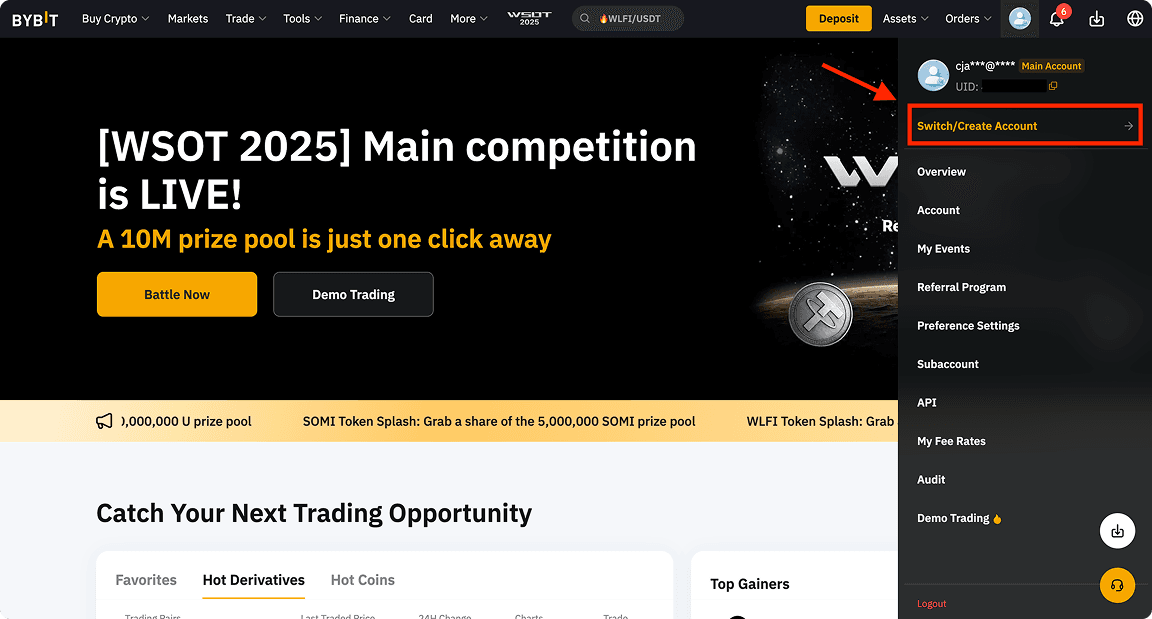
Navigate To "Switch/Create Account"
Navigate to the account switching section in your Bybit dashboard
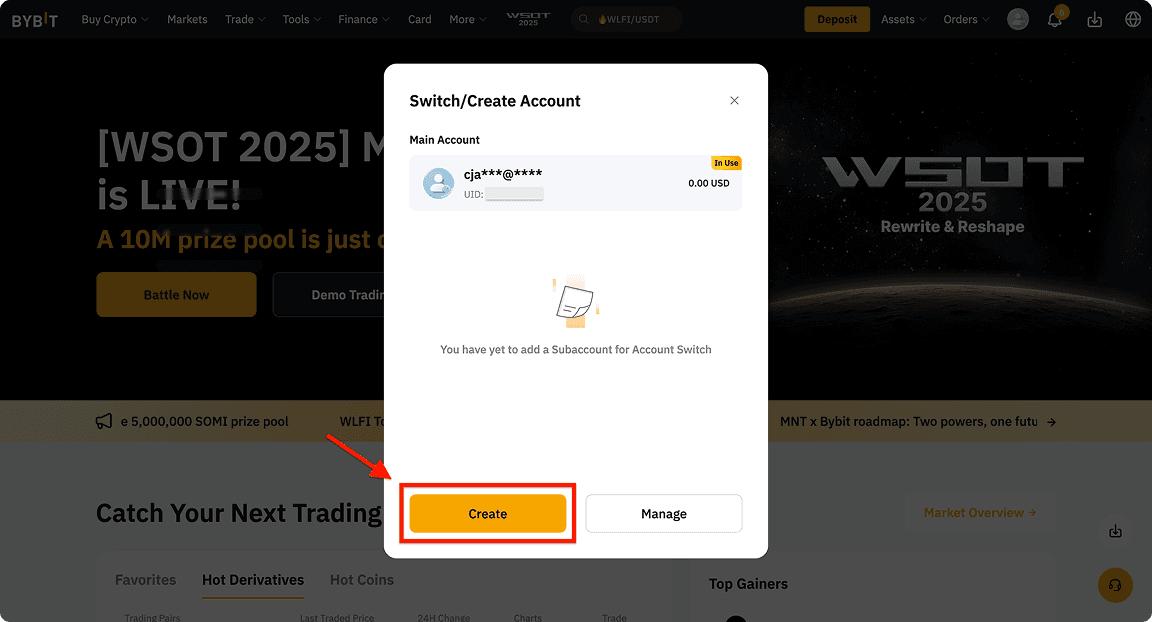
Create A Sub Account
Click to create a new sub account for your portfolio
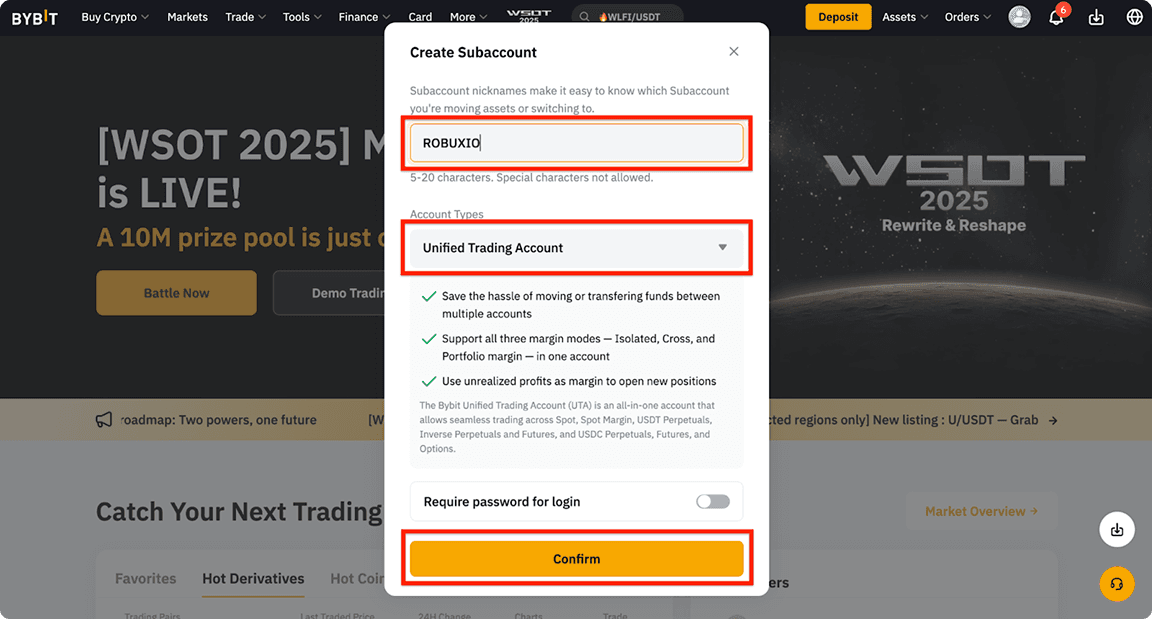
Choose A Nickname For Your Sub Account
It doesn't have to be "ROBUXIO", but that's probably easiest to remember. Also make sure the account type is a "Unified Trading Account".
Select "Create with Email" option
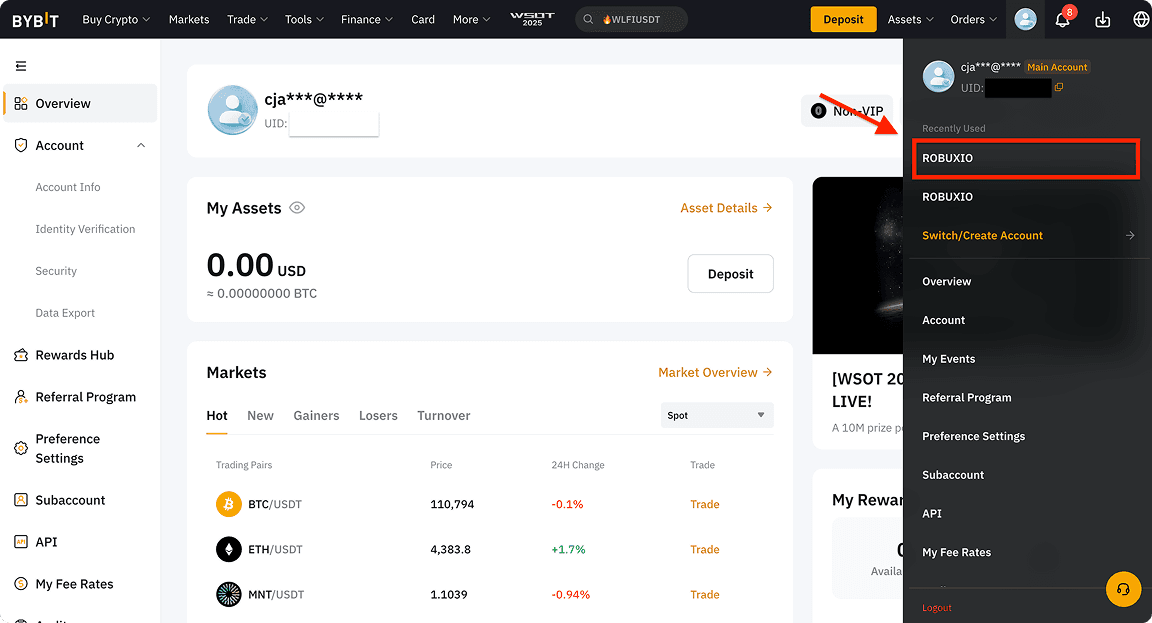
Navigate Into Your Sub Account
Switch to the newly created sub account
Navigate To API In Your Sub Account
Go to the API management section within your sub account
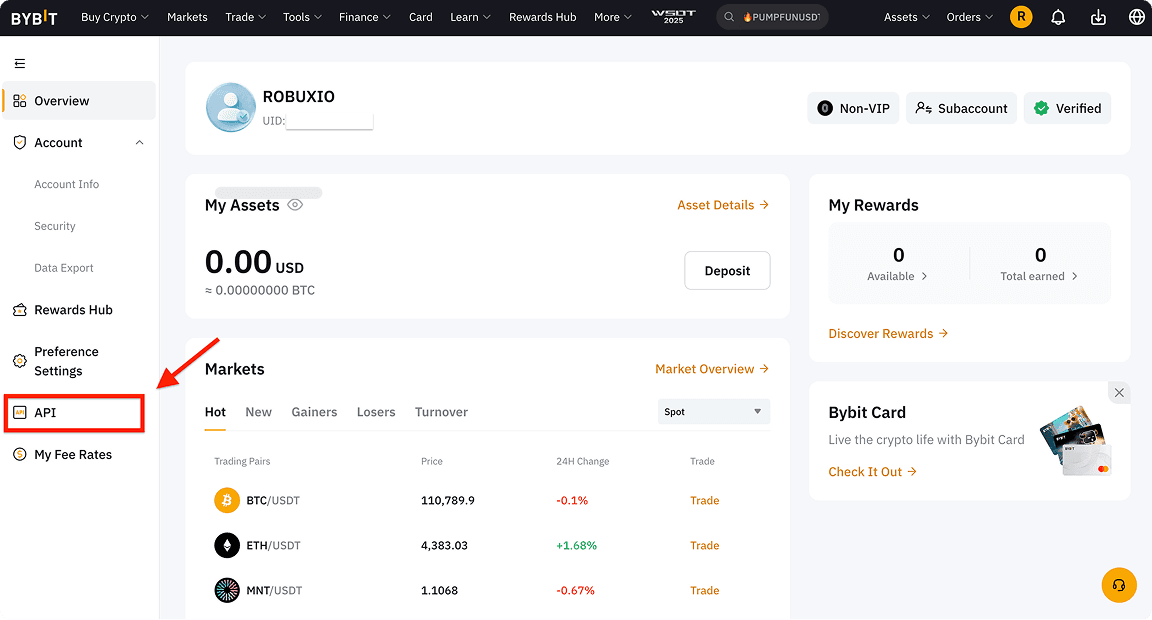
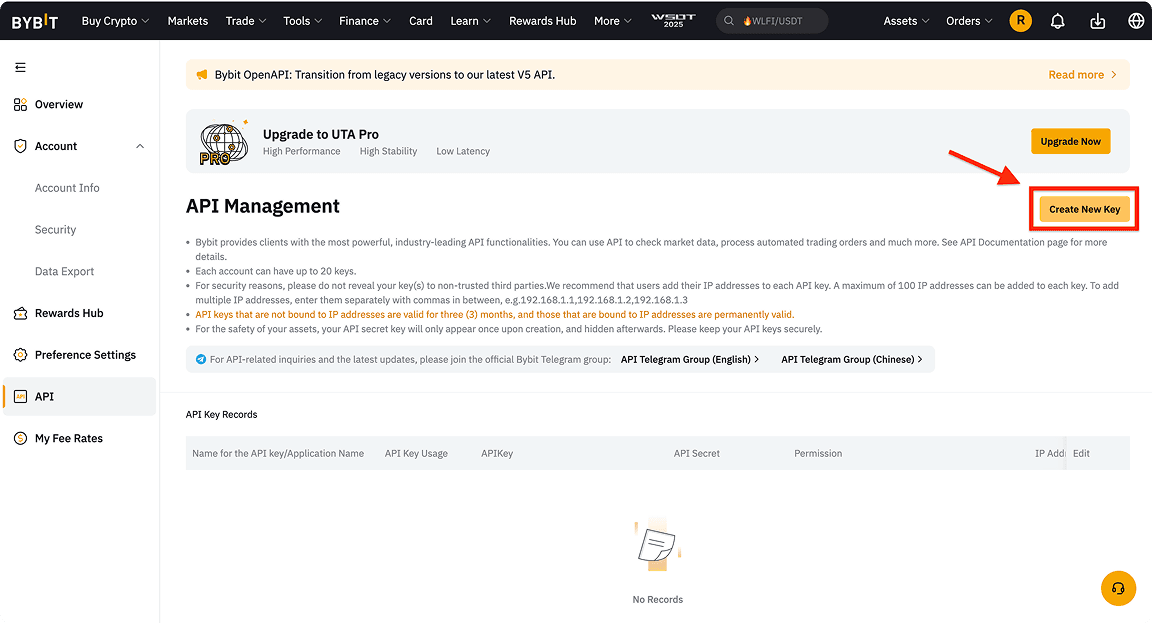
Create New API Keys In Your Sub Account
You might have to setup 2-Factor Authentication on your sub account prior to creating the API keys.
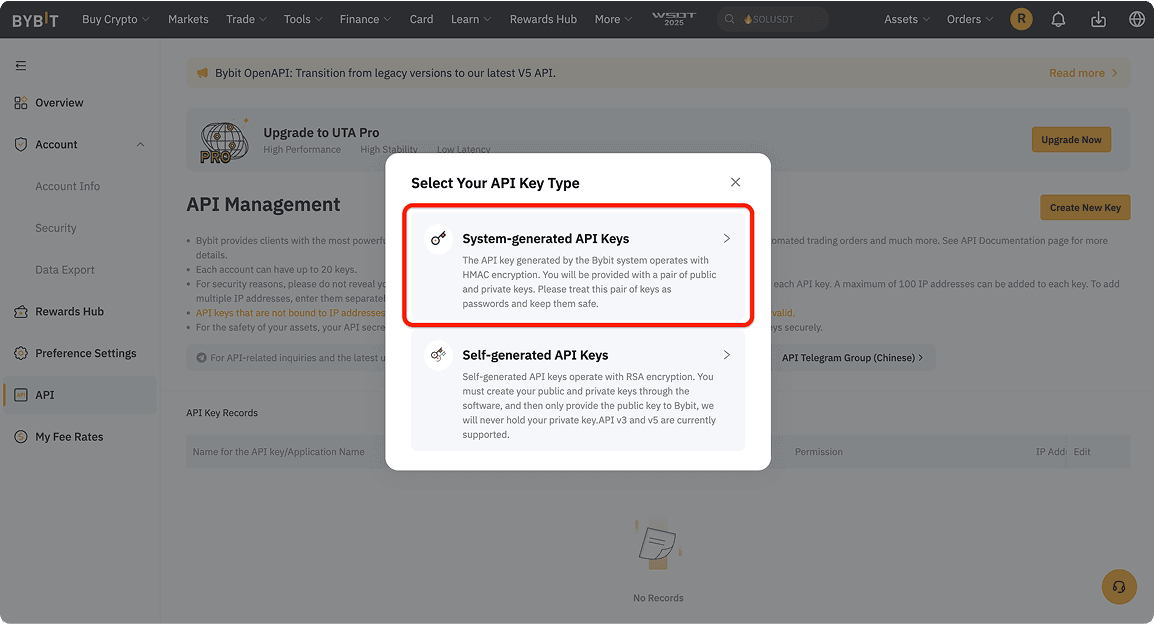
Choose "System-generated API Keys"
Select the system-generated API keys option
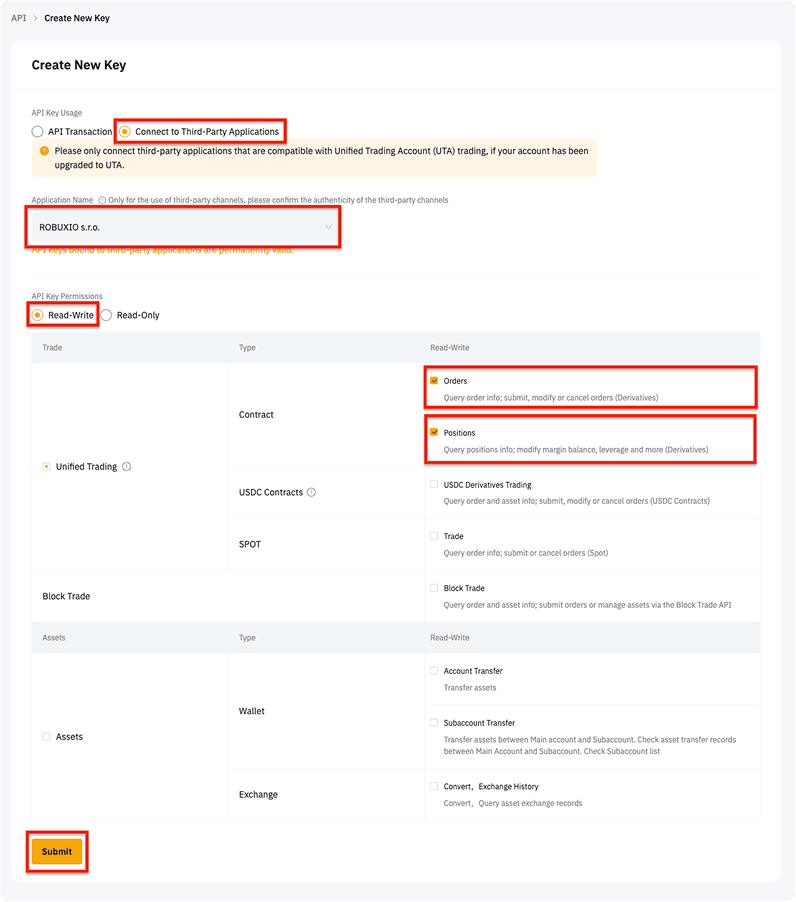
Configure Your API Keys
Set up the required permissions for your API keys
Your API Keys will be generated
Do NOT press "Understood" until you have completed Step 10.
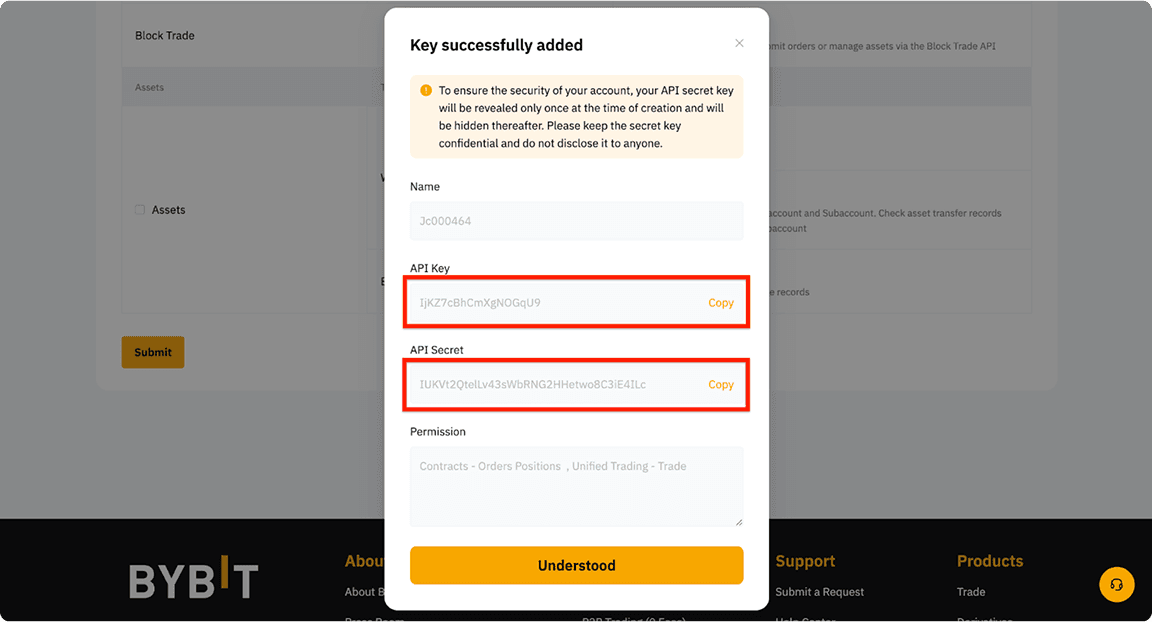
Copy Your API Key And Secret Key To The Robuxio Dashboard
Make sure to copy them before pressing "Understood" as they will only be shown once and paste them into your Robuxio dashboard under "Settings" → "Profile" → "Add a new Profile"
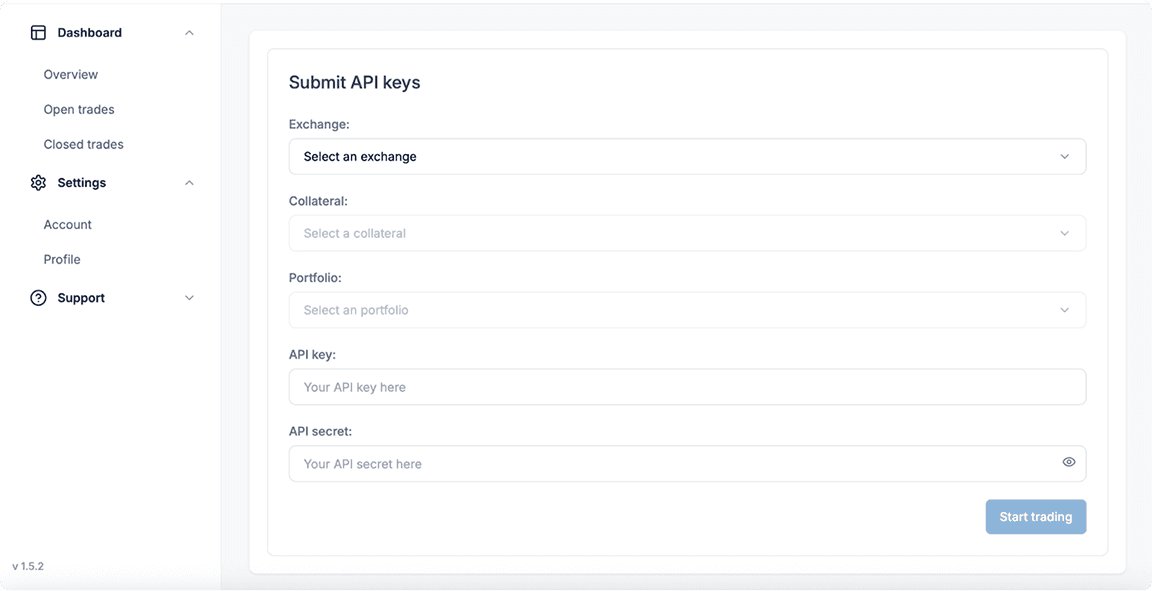
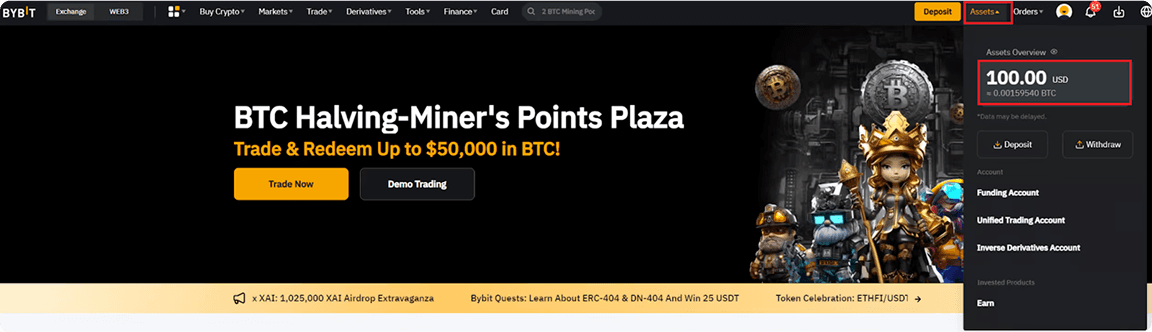
Navigate Back To Your Asset Overview
Enable "Portfolio Margin Trading", "Enable Spot & Margin Trading" and "Save" your API keys
Press "Transfer"
Click the transfer button to move funds
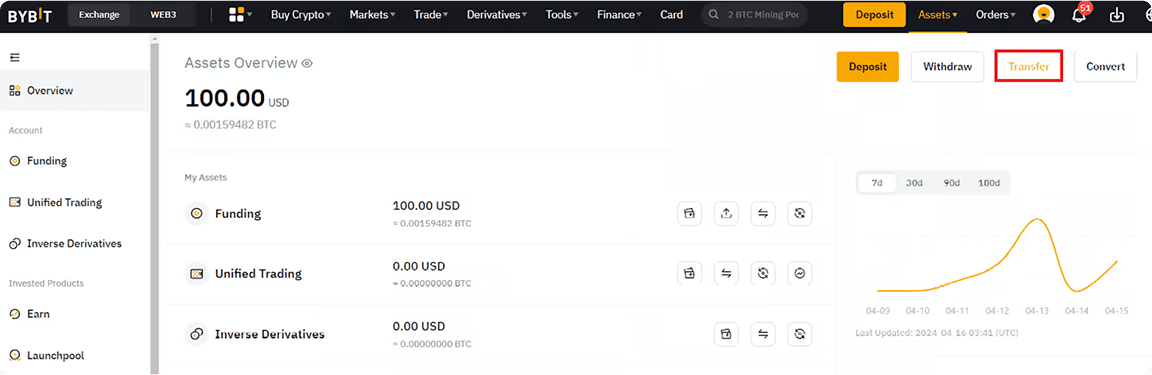
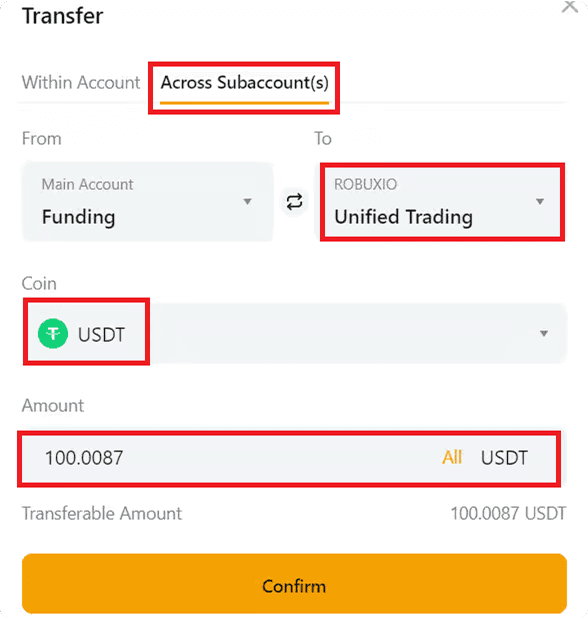
Transfer The Funds From Your Funding Wallet To Your UTA Sub Account
Move your funds from the funding wallet to the Unified Trading Account
Setup Complete!
Once the funds are in your sub account USD-M Futures account and you see them in your Robuxio dashboard you are all set!
Frequently Asked Questions
What is the difference between a Bybit Unified Trading Account and the Funding Account?
The Funding Account (funding wallet) is where deposits arrive and withdrawals leave from — it is not used for trading. The Unified Trading Account (UTA) holds the collateral you actually trade with across spot and derivatives and supports margin modes such as Portfolio Margin. To start trading, you transfer funds from the Funding Account into the UTA.
How do I transfer funds between the Unified Trading Account and the Funding Account?
In your Bybit asset overview, press Transfer, choose the direction (Funding → Unified Trading Account to fund trading, or UTA → Funding to prepare a withdrawal), then select the coin and amount. This is an internal Bybit transfer between your own accounts, so no on-chain withdrawal is involved.
Why does Robuxio use a Unified Trading Account sub account?
A dedicated UTA sub account keeps the portfolio's collateral and API keys isolated from the rest of your Bybit account, and it supports Portfolio Margin, which the trading engine uses. Your main account and other funds stay untouched.
Do I need a separate sub account for each collateral type?
Yes. If you run portfolios in multiple denominations (USDT, BTC, ETH), create one sub account per denomination and keep only one type of collateral in each.