
Binance Futures Credits (BNFCR) Guide
Everything EU traders need to know about BNFCR — transfers, swaps, withdrawals, and margin modes explained step by step.
Binance Futures Credits (BNFCR) — What EU Traders Need to Know
What is BNFCR?
Binance Futures Credits (BNFCR)is Binance's trading mode for USDⓈ-M futures in regulated EU markets. Under this mode, all PNL, margin, and fees are displayed in BNFCR — where 1 BNFCR = 1 USD.
When you deposit crypto (BTC, ETH, BNB, or USDC) into your Futures Wallet, everything is converted and tracked in BNFCR based on the USD value at that time. For example, depositing 0.5 BTC at $60,000 gives you 30,000 BNFCR. All your trading, PNL, and fees happen in BNFCR from that point on.
To withdraw, you swap your BNFCR balance back to BTC, ETH, or BNB at the current market rate, then transfer to your Spot Wallet.
Credits Trading Mode is fully compatible with automated trading — our algorithmic crypto trading strategies for Binance run natively in BNFCR mode for EU accounts.
Cannot Withdraw BNFCR Directly
BNFCR is not a token you can transfer or withdraw. To get funds out, you must swap BNFCR to BTC, ETH, or BNB first, then transfer to your Spot Wallet for withdrawal.
Permanent Upgrade
Once you upgrade to Credits Trading Mode, the change cannot be undone. Your margin mode is locked to Cross Margin with Multi-Asset Mode.
Key Details
Supported Contracts
USDⓈ-M futures contracts only
Collateral Assets
BTC, ETH, BNB, and USDC
Margin Mode
Cross Margin + Multi-Asset Mode (locked)
API Trading
Fully supported — API keys are not affected
How Your BNFCR Balance Works
Everything in your Futures Wallet is valued at its current USD price and shown as BNFCR. 1 BNFCR always equals $1 USD.
How to Get Funds In
Transfer assets from your Spot Wallet to your Futures Wallet on the Binance website.
Open the Transfer Window
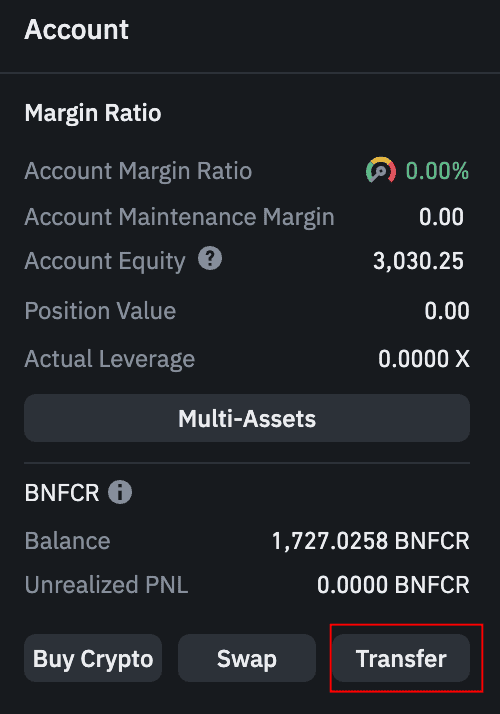
On the Futures trading page, scroll down to the Asset widget in the bottom-right corner. Click Transfer.
Select Asset and Transfer
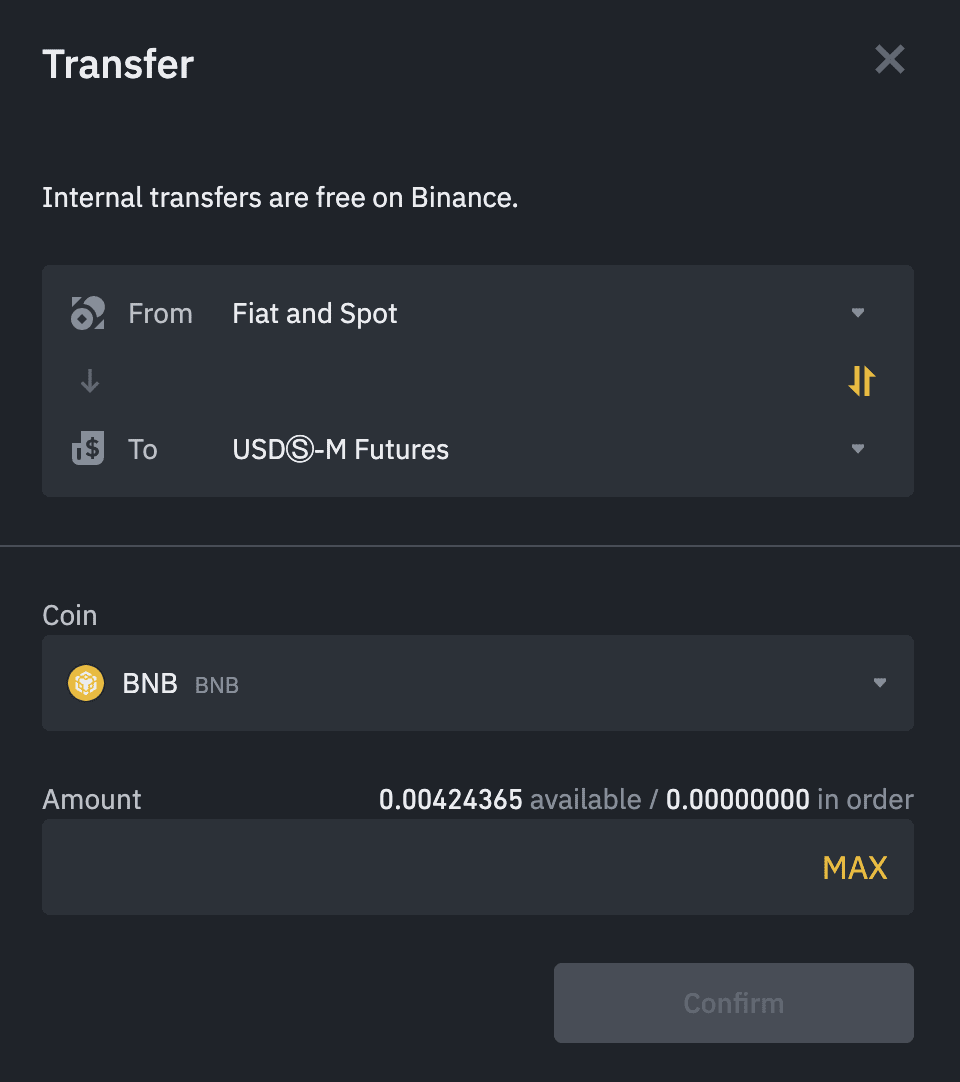
Choose the token you want to transfer into your Futures Wallet. Only BTC, ETH, BNB, and USDC are supported. Enter the amount and click Confirm.
Verify Your Balance
Once the transfer is complete, check your available balance under the Assets section. Your balance will be displayed in BNFCR (USD equivalent).

How to Swap & Withdraw
Swap BNFCR to crypto, then transfer out to your Spot Wallet.
Why Swap?
BNFCR cannot be withdrawn directly. To get your funds out, you need to swap BNFCR to BTC, ETH, or BNB at market value. Once swapped, transfer the crypto to your Spot Wallet and withdraw as usual.
Open the Swap Function
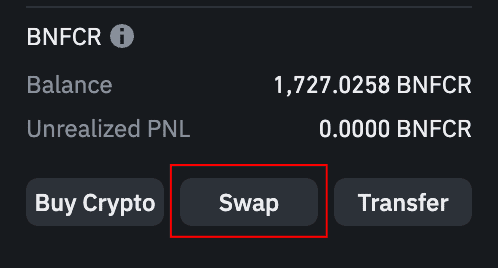
In the Asset widget at the bottom-right corner, click Swap.
Choose Assets and Confirm
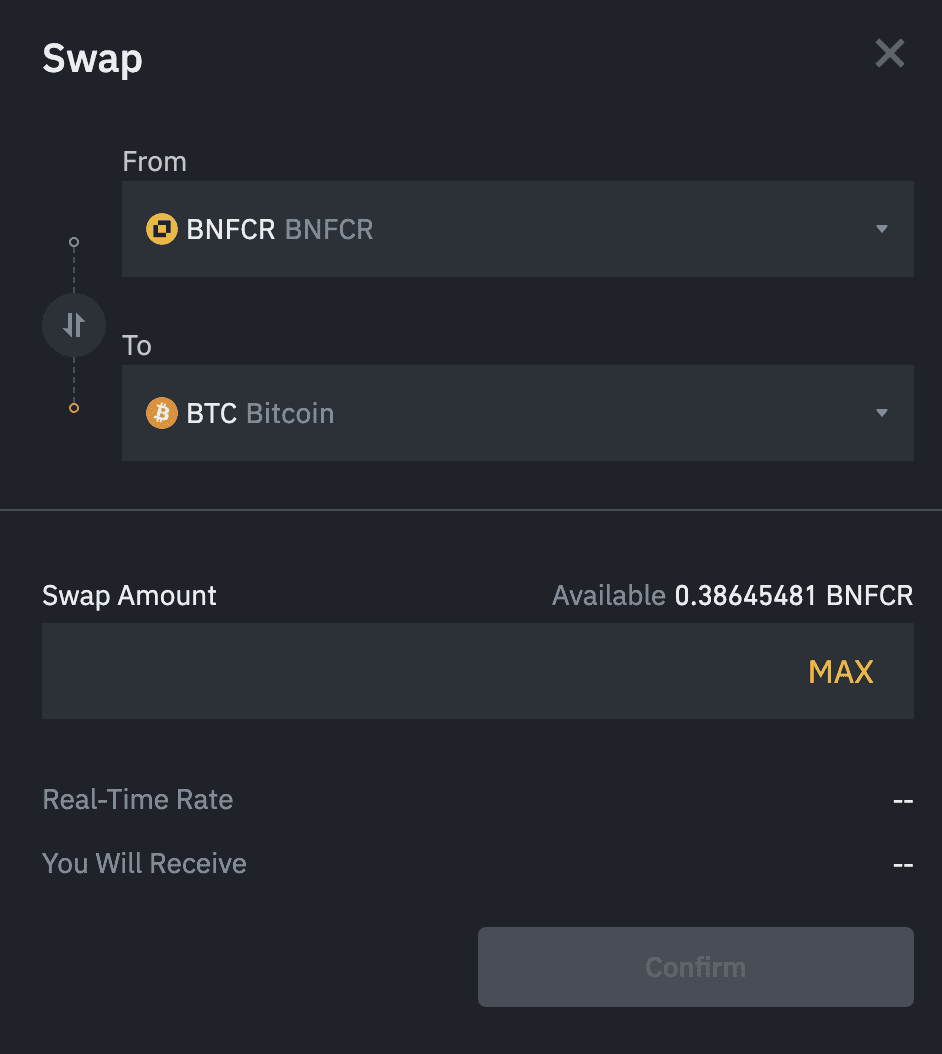
Select the asset you want to swap from and to, then enter the amount. The maximum you can swap equals your available balance.
Review the real-time exchange rate and the amount you'll receive. Click Confirm within the time limit, or the system will refresh the quote.
Transfer to Spot Wallet
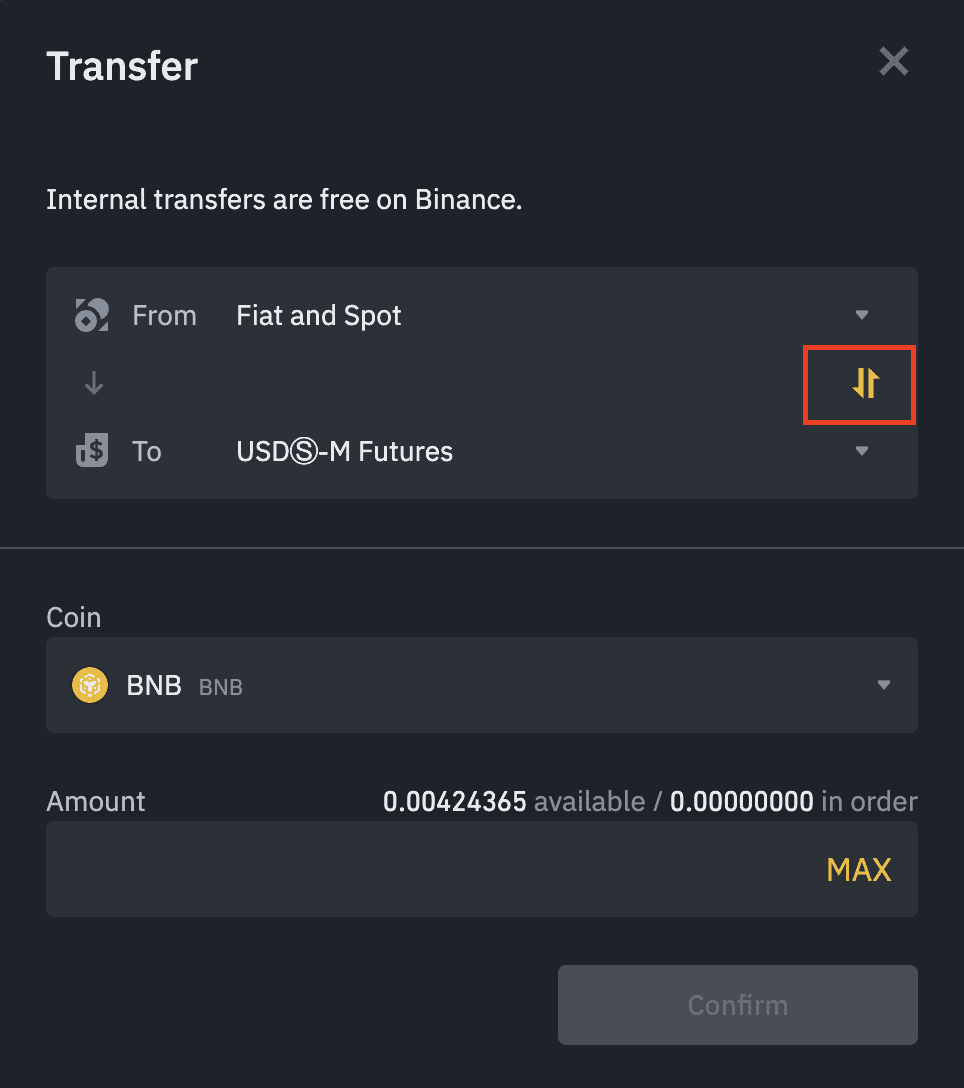
After swapping, go back to the Transfer function. Click the swap icon to change the direction (Futures → Spot). Enter the amount and click Confirm to move funds to your Spot Wallet for withdrawal.
Available Swap Pairs
Credits Trading Mode (EU)
Normal Mode (non-Credits Trading Mode)
⚠️ Note: USDT can only be swapped to BTC, ETH, or BNB. USDT cannot be swapped to BNFCR and vice versa.
Margin & Asset Modes
After upgrading, your margin mode is set to Cross Margin Mode and your asset mode to Multi-Asset Mode. These settings are locked and cannot be changed while in Credits Trading Mode.
Looking for Systematic Crypto Exposure?
Robuxio provides institutional-grade algorithmic trading strategies for Binance — fully compatible with BNFCR mode. Let our trading engine handle the execution while you focus on growing your portfolio.